Adding a PDF to an Elementor page is one of the most requested features for WordPress sites. Whether you’re sharing a brochure, eBook, research paper, terms of service, or product catalog, you have multiple ways to do it: simple downloadable links, full inline embeds, interactive viewers, or even a complete PDF library.
This in-depth guide covers six practical methods (from zero plugins to advanced options), real-world tips for responsiveness, performance, accessibility, and SEO, plus troubleshooting and FAQs. By the end, you’ll confidently choose the best approach for any project.
Why Add PDFs to Your Elementor Pages
- User experience — Readers stay on your site instead of downloading and opening a separate app.
- Lead generation — Gate downloads behind forms or email opt-ins.
- SEO — Google indexes PDFs; optimized filenames and titles help.
- Professionalism — Inline viewers feel modern and trustworthy.
Prerequisites (Takes 2 Minutes)
- WordPress site with Elementor (free or Pro) installed and activated.
- A PDF file ready (under 10–20 MB recommended for fast loading).
- Editor access to a page.
Method 1: Add a Downloadable PDF Link (Fastest & Most Common)
This creates a clean button or text link that opens the PDF in a new tab or triggers a download.
Step-by-step:
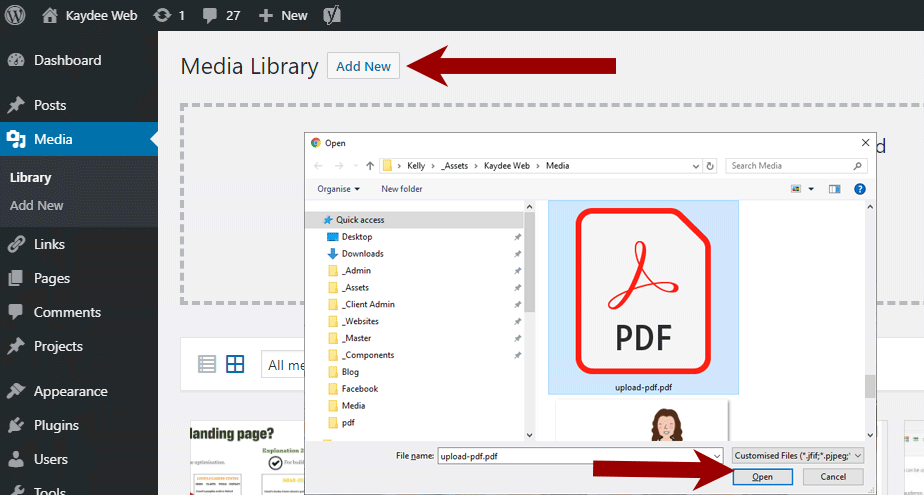
- Go to Media → Add New and upload your PDF.
- Copy the file URL (click the file → “Copy URL to clipboard”).
How to add PDFs to WordPress and easily add links too
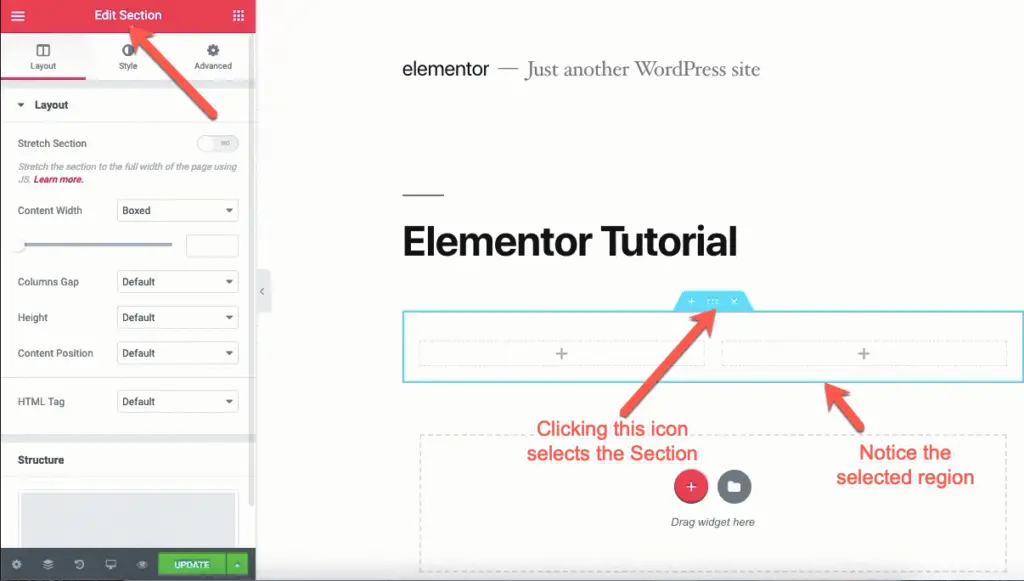
- Edit your page with Elementor.
- Drag a Button widget (or Text Editor for inline links).
- In the Link field, paste the PDF URL.
- Optional: Set “Open in new window” and add an icon (e.g., download arrow).
2 Easy Ways To Embed A PDF In Elementor Without Writing Code
Pro tips:
- Use dynamic tags if you have many PDFs (Elementor Pro + ACF).
- Add a lightbox popup with the File widget in Elementor Pro for a nicer preview before download.
When to use: Brochures, resumes, one-off documents. Zero performance impact.
Method 2: Embed PDF Natively with HTML Widget (No Plugin, Fully Responsive)
This displays the PDF directly on the page using browser-native <object> or <iframe> tags.
Step-by-step:
- Upload PDF to Media Library and copy the direct URL.
- In Elementor, drag an HTML widget to your section.
- Paste one of these codes:
HTML
<!-- Recommended: object tag -->
<object data="YOUR-PDF-URL.pdf" type="application/pdf" width="100%" height="800px">
  <p>Your browser does not support PDFs. <a href="YOUR-PDF-URL.pdf">Download the PDF</a>.</p>
</object>
HTML
<!-- Alternative: iframe -->
<iframe src="YOUR-PDF-URL.pdf" width="100%" height="800px" frameborder="0"></iframe>
Replace YOUR-PDF-URL.pdf with your actual URL.
Customization ideas:
- Make it responsive: Use height: 100vh or CSS aspect-ratio.
- Add fallback download link inside the tag.
- Style the container with Elementor’s Advanced → Custom CSS.
When to use: Quick embeds, no extra plugins, full control.
Method 3: Use a Free Dedicated PDF Viewer Widget (Best UX)
Several free plugins add native Elementor widgets with zoom, pages, download buttons, and mobile-friendly viewers.
Top free options:
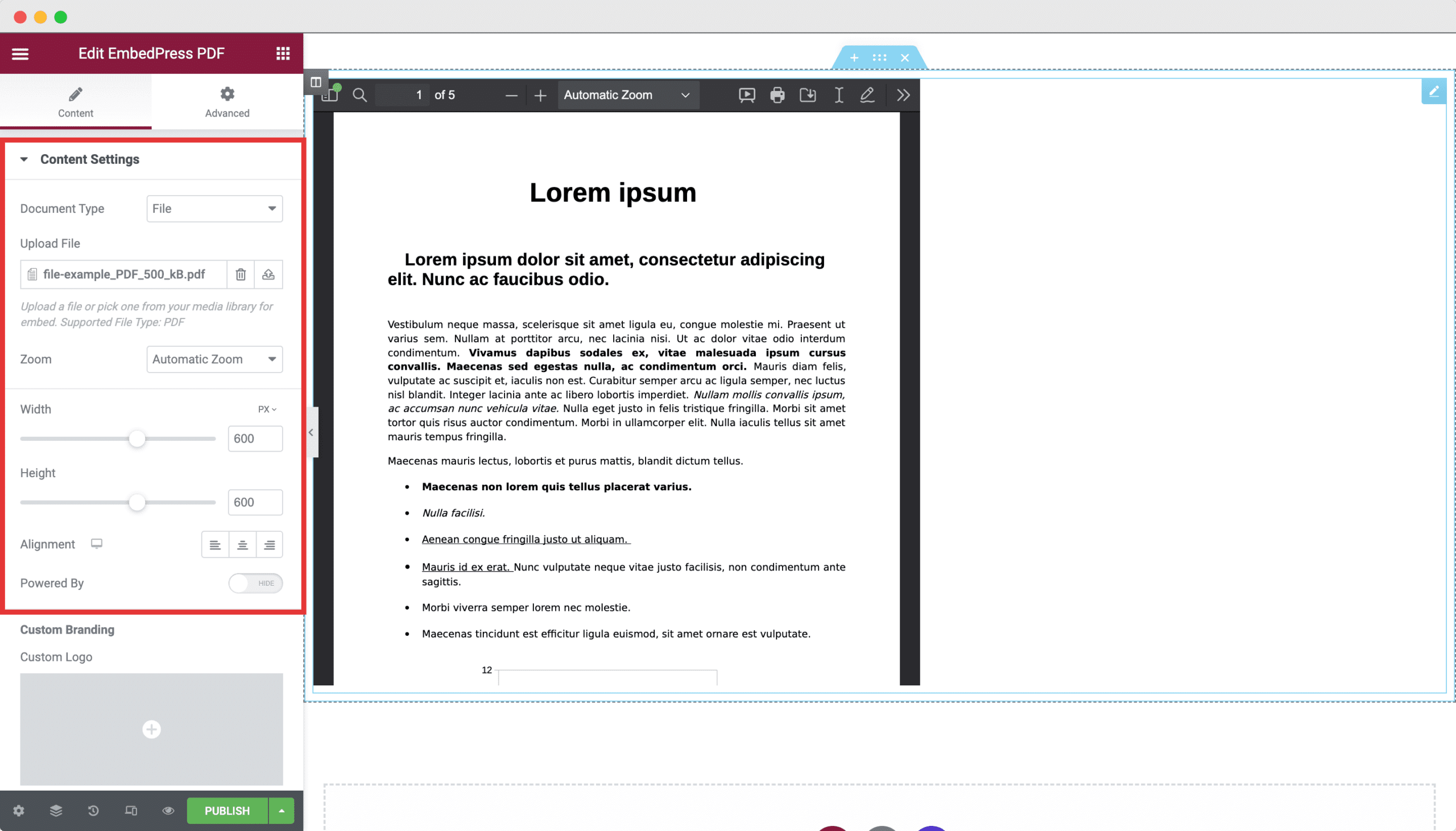
- EmbedPress (most popular) → Dedicated “EmbedPress PDF” widget.
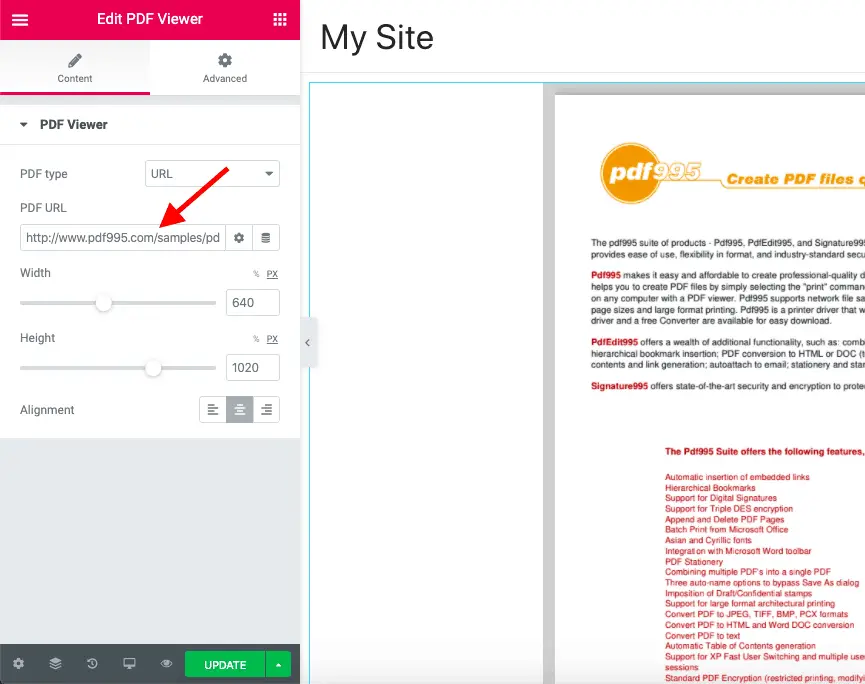
- Unlimited Elements for Elementor → Free PDF Viewer widget.
- PDF Embedder (classic shortcode + basic viewer).
EmbedPress example:
- Install & activate EmbedPress (free).
- In Elementor, search for “EmbedPress PDF”.
- Drag it, upload/select your PDF, adjust width/height/zoom.
How To Embed Document And PDF In WordPress
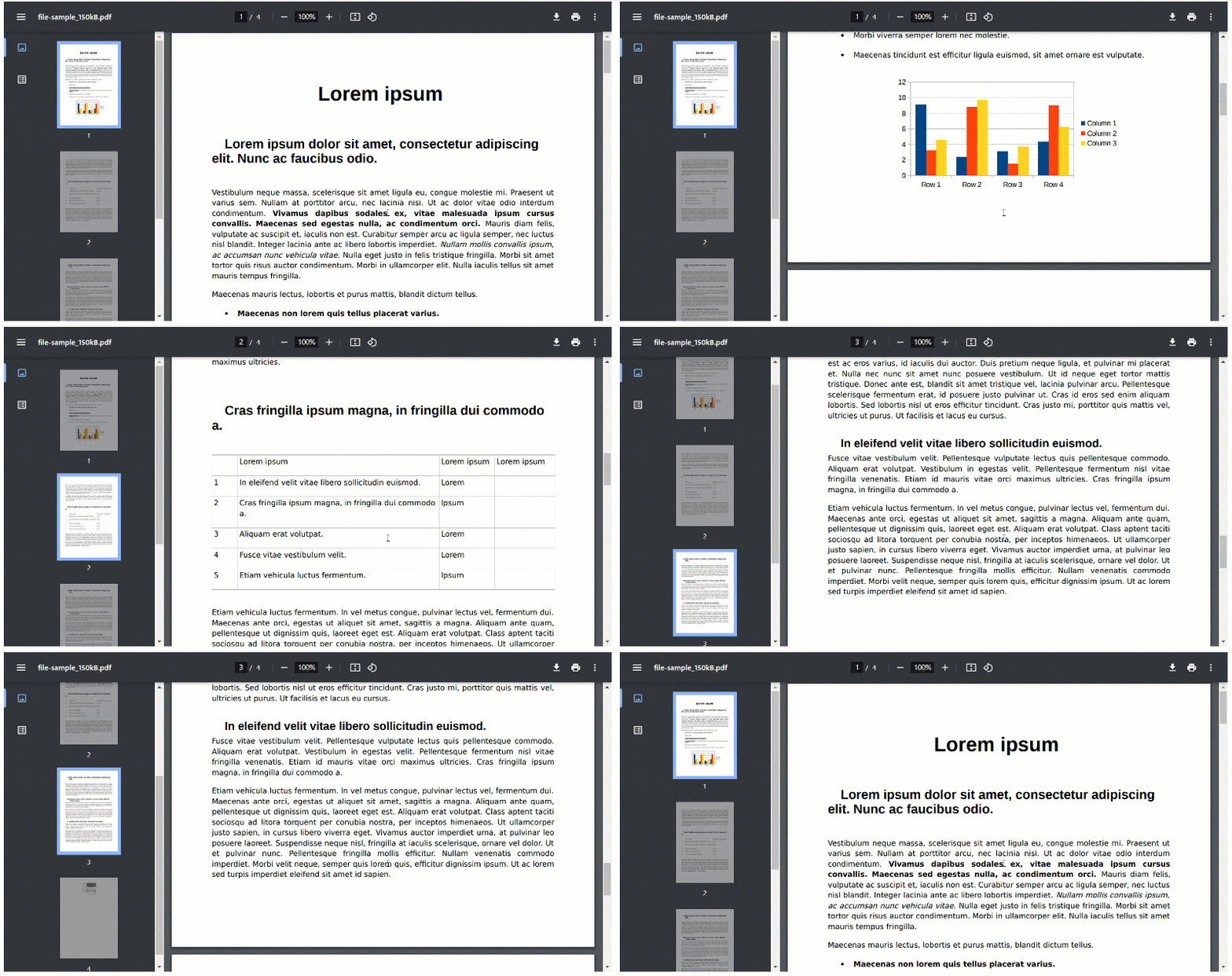
Result on frontend:
PDF Viewer for Elementor (Free & Easy to Use) – Unlimited Elements …
When to use: Professional inline viewing, mobile scrolling, print protection (premium).
Method 4: Embed via Google Drive (Bypass Hosting Limits)
Great if your PDF is large or you want version control.
Steps:
- Upload PDF to Google Drive → Share → “Anyone with the link” → Copy link.
- Replace /view with /preview in the URL.
- Use this iframe code in an HTML widget:
HTML
<iframe src="https://drive.google.com/file/d/YOUR-FILE-ID/preview" width="100%" height="800px" frameborder="0"></iframe>
Alternative: Use the official Google Drive embed code.
When to use: Large files, collaborative PDFs, quick updates without re-uploading to WordPress.
Method 5: Create a Beautiful PDF Library / Gallery
Perfect for resource pages, portfolios, or documentation hubs.
Options:
- Barn2 Document Library Pro → Drag-and-drop library with categories, search, filters. Works perfectly with Elementor shortcodes.
- Unlimited Elements + PDF Viewer → Grid of thumbnails that open full viewers.
- Happy Addons or The Plus Addons → PDF gallery widgets.
Example with Unlimited Elements PDF Viewer in a grid:
2 Easy Ways To Embed A PDF In Elementor Without Writing Code
When to use: Multiple PDFs, searchable archive.
Method 6: Advanced Techniques (For Power Users)
- Popup embed — Button triggers Elementor Popup containing HTML widget with PDF.
- Lightbox — Use Elementor Pro Image widget + custom CSS to open PDF in lightbox (or plugins like Essential Addons Lightbox).
- Protected PDFs — EmbedPress Pro or PDF Embedder Premium prevents right-click/save/print.
- Custom CSS/JS — Add page-turn effects, progress tracking, or analytics on PDF views.
Best Practices for Performance, SEO & Accessibility
- Compress PDFs — Use Smallpdf, ILovePDF, or Adobe Compress (aim <5 MB).
- Responsive heights — Use height: 70vh or media queries.
- Lazy loading — Most modern viewers support it.
- Accessibility — Always include fallback text + download link. Add title and aria-label.
- SEO — Use descriptive filename (e.g., 2025-annual-report.pdf), add schema if using plugins.
- Caching — Cloudflare + WP Rocket works great with embedded PDFs.
- Mobile testing — Always preview on phone; some viewers need scrolling=”yes”.
Troubleshooting Common Issues
- PDF shows blank → Wrong URL, CORS issue (same-domain fix), or browser PDF blocker. Test direct link.
- Slow loading → Compress + use CDN (Jetpack, BunnyCDN).
- Mobile zoom broken → Add width=”100%” and test with object-fit.
- Plugin conflict → Deactivate others temporarily.
- 404 after upload → Clear permalink cache (Settings → Permalinks → Save).
FAQs